
Arguments
-
ComponentrequiredYour component to be registered. This can be a React component or a function.
-
objectrequired
Options for site version and locale.
Examples
Registering a box
This example shows how to register aBox component. 'box' is the value for type, which must
be unique, as Makeswift uses this value to identify the component. This value shouldn’t change once you use the
component in the Makeswift builder. 'Box' is the label, which appears in
the Makeswift builder. The example applies a Style control to the
className prop.
makeswift/components.tsx
Creating sections
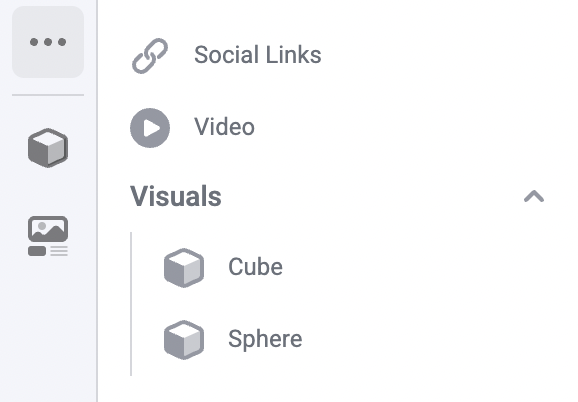
This example shows how to register aCube and a Sphere component under a “Visuals” section. In each
components’ label, use slashes to separate the section name and component name. In the Makeswift
builder, both components appear under the same Visuals collapsible section:
makeswift/components.tsx
Adding custom icons
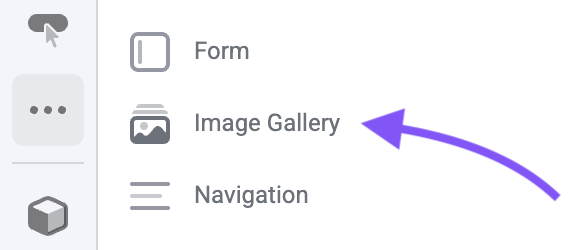
This example shows how to register anImageGallery component with a custom icon. We
import ComponentIcon from @makeswift/runtime and pass
ComponentIcon.Gallery as the icon for our component.
You can find all available icons in the icons list section.
makeswift/components.tsx
Organizing registration code
As you register more components inmakeswift/components.tsx, you may notice this file growing rather large. To keep your codebase organized, we recommend breaking out your Makeswift registration code into separate files and co-locating it with your component file.
For example, if you have a Box component, you can create a Box.makeswift.ts file next to your Box.tsx file. This file will contain the registration code for the Box component.
Makeswift does not rely on this naming convention. Feel free to use
whatever naming convention you prefer.
makeswift/components.tsx file to import all of the component registrations, like so:
makeswift/components.ts
makeswift/components.ts should be imported wherever you use <ReactRuntimeProvider> in your app.