> ## Documentation Index
> Fetch the complete documentation index at: https://makeswift-sasha-eng-8460-create-a-guide-for-troubleshooting.mintlify.site/llms.txt
> Use this file to discover all available pages before exploring further.
# Pages Router
> This guide walks you through setting up localization for your Makeswift site so you can visually customize your site for different locales.
The feature is deeply integrated with [Next.js' internationalization
features](https://nextjs.org/docs/pages/building-your-application/routing/internationalization).
## Getting started
Open site settings and go to the "Locales" tab:
The number of locales you have access to is dependent upon your
[plan](/product/workspace/plans). Refer to the [pricing
page](https://makeswift.com/pricing) for full details.
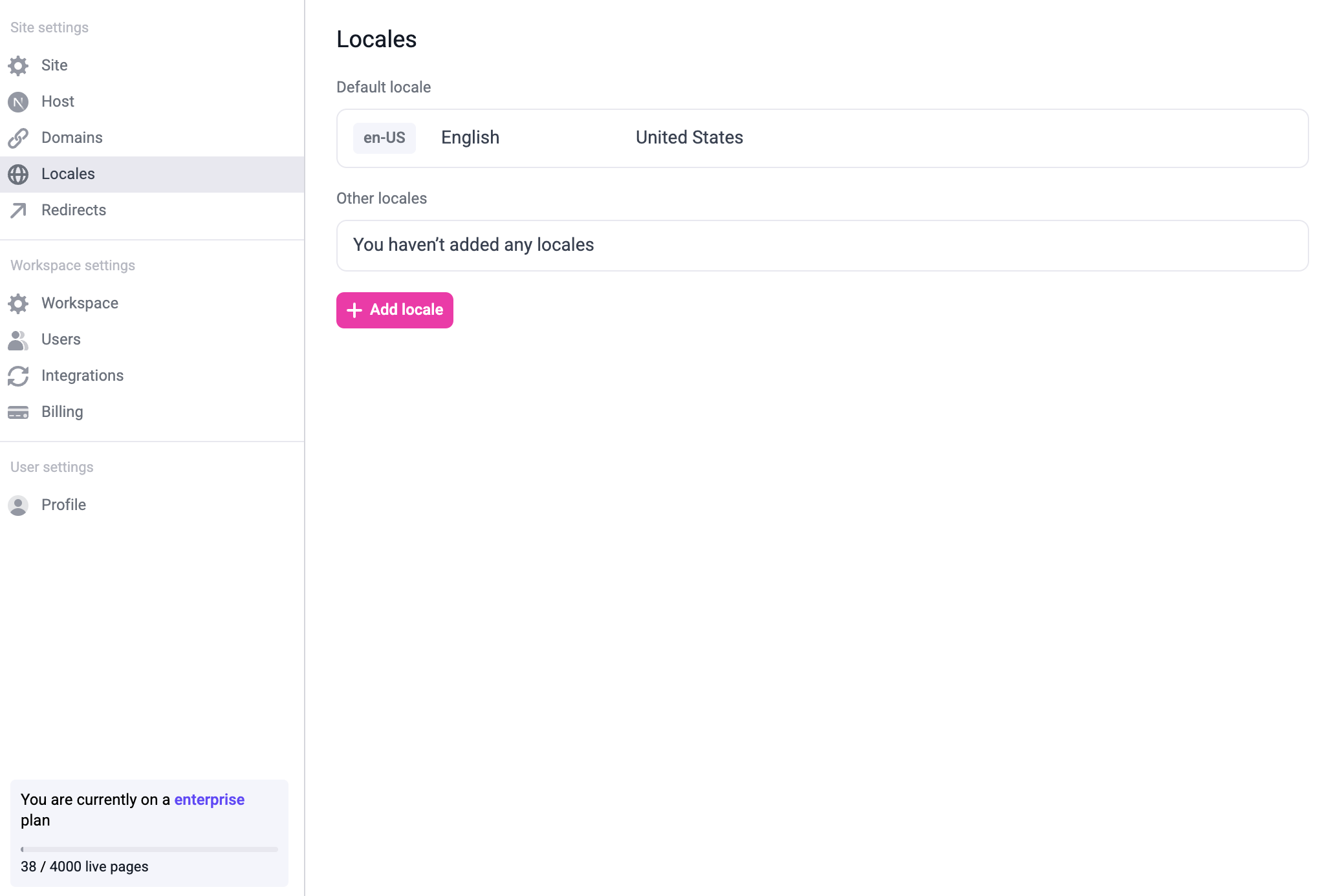
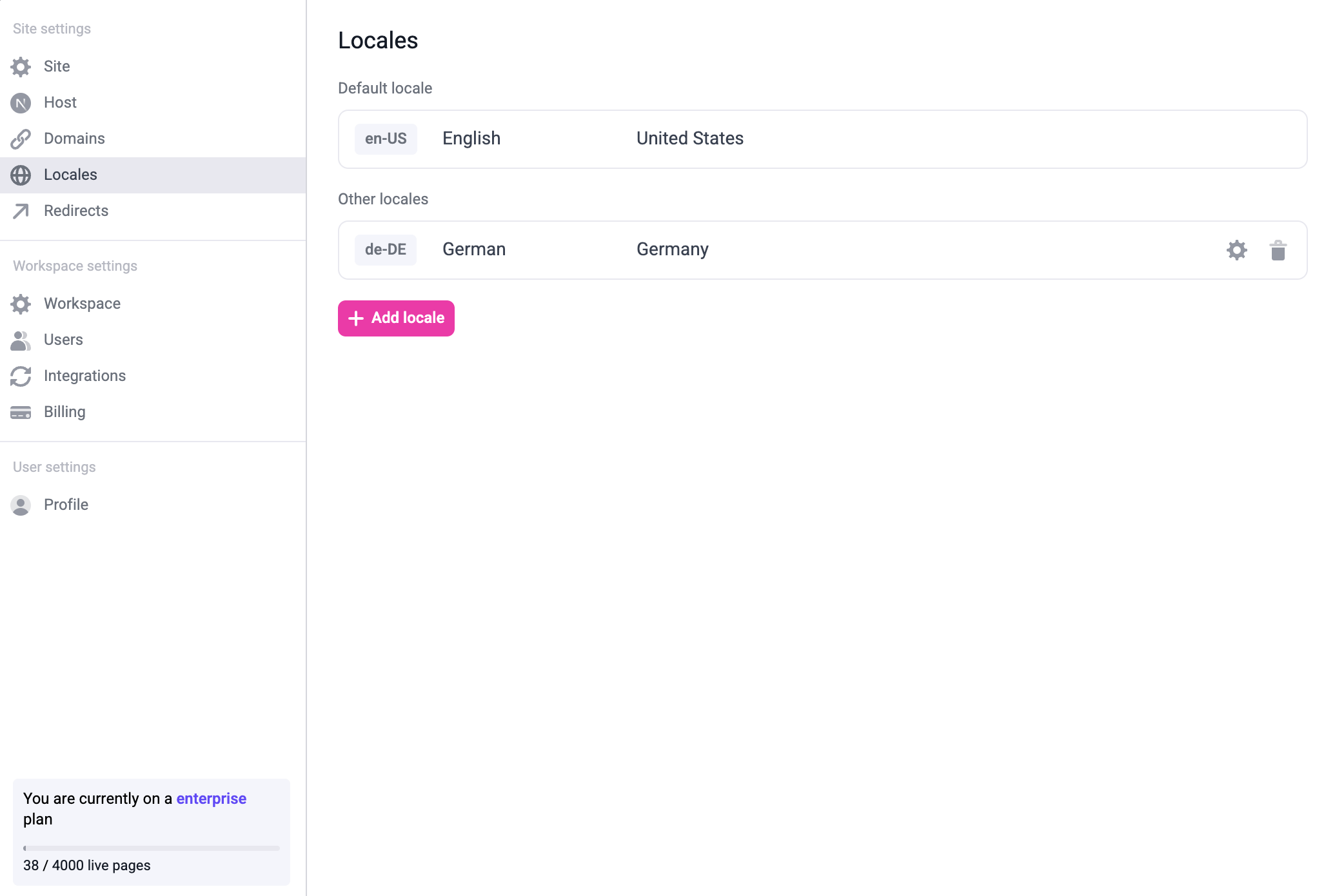
To add a new locale, click the "+ Add locale" button. You can modify or delete existing locales by hovering over the locale:
You can also modify the default locale by hovering over the default locale and clicking the edit button.
Once you add all the locales you need, it might look like this:
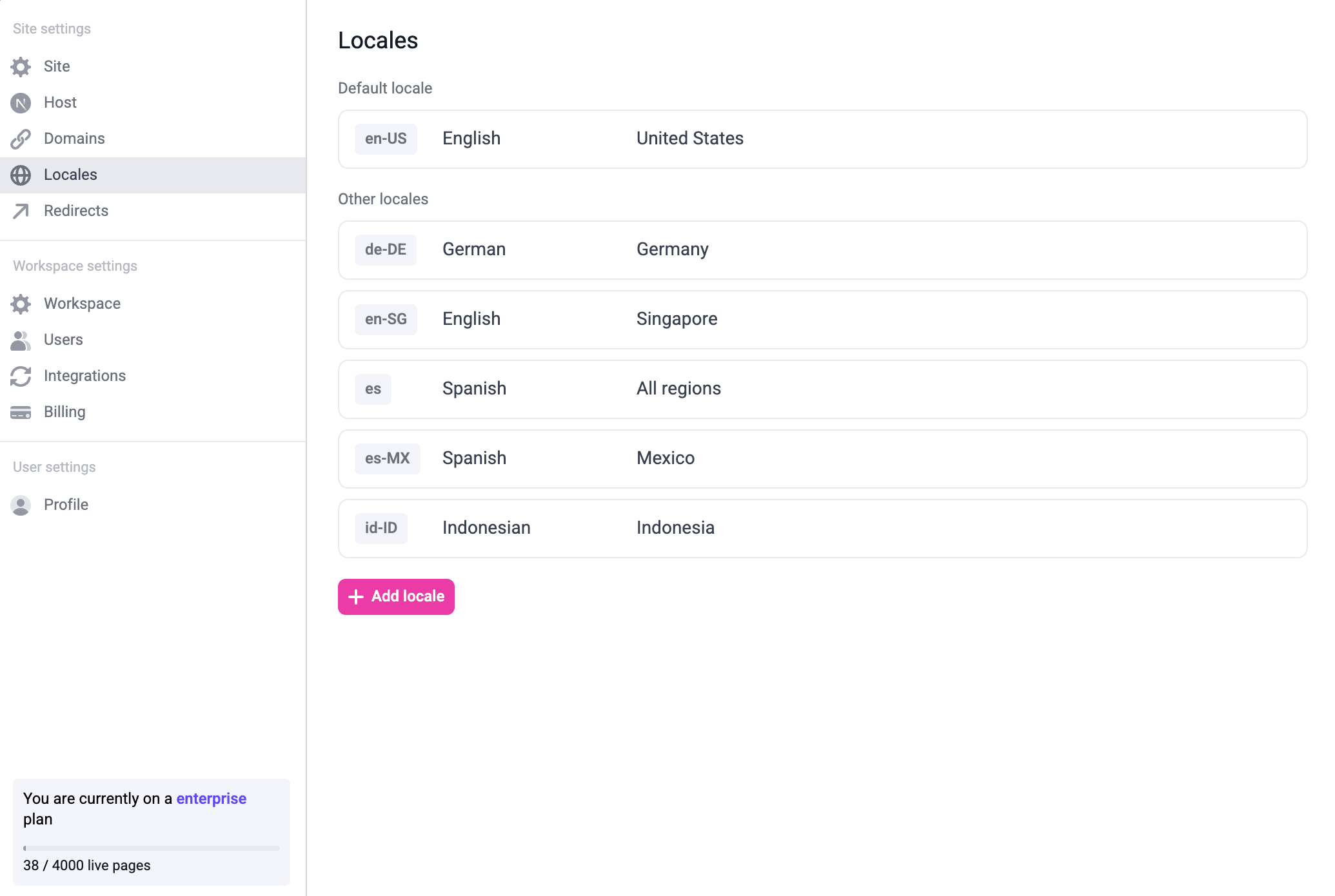
The locales in your site settings need to match the locales configured in `next.config.mjs`. For example, to match the locales on the screenshot above, update `next.config.mjs` to be like this:
```js next.config.mjs
import createWithMakeswift from "@makeswift/runtime/next/plugin"
const withMakeswift = createWithMakeswift()
/** @type {import('next').NextConfig} */
const nextConfig = {
// your existing next config
i18n: {
locales: ["en-US", "de-DE", "en-SG", "es", "es-MX", "id-ID"],
defaultLocale: "en-US",
},
}
export default withMakeswift(nextConfig)
```
```js next.config.js
const createWithMakeswift = require("@makeswift/runtime/next/plugin")
const withMakeswift = createWithMakeswift()
/** @type {import('next').NextConfig} */
const nextConfig = {
// your existing next config
i18n: {
locales: ["en-US", "de-DE", "en-SG", "es", "es-MX", "id-ID"],
defaultLocale: "en-US",
},
}
export default withMakeswift(nextConfig)
```
Note that in `next.config.mjs`, you also need to put your `defaultLocale` in `locales`.
For example, here, we're adding `en-US` to the `locales`.
It is important to match the locales and the default locale on the site settings to the locales configured in `next.config.mjs`. Otherwise
the pages on the builder will not load properly.
Once you set up locales in the site settings and in the Next.js config, you need to pass the locale from `getStaticProps` to `getPageSnapshot`.
```tsx pages/[[...path]].tsx
import { Makeswift, Page as MakeswiftPage } from "@makeswift/runtime/next"
import { client } from "@/makeswift/client"
export async function getStaticPaths() {
const pages = await client.getPages()
return {
paths: pages.map((page) => ({
params: {
path: page.path.split("/").filter((segment) => segment !== ""),
},
})),
fallback: "blocking",
}
}
export async function getStaticProps({ params, previewData, locale }) {
if (params == null) return { notFound: true }
const path = "/" + (params.path ?? []).join("/")
const snapshot = await client.getPageSnapshot(path, {
siteVersion: Makeswift.getSiteVersion(previewData),
locale,
})
if (snapshot == null) return { notFound: true }
return { props: { snapshot } }
}
export default function Page({ snapshot }) {
return
}
```
This code is usually located in `[[...path]].tsx`, but it might be different depending on your setup.
Once you've set everything up, you should be able to switch to the locale using the locale switcher on the builder.
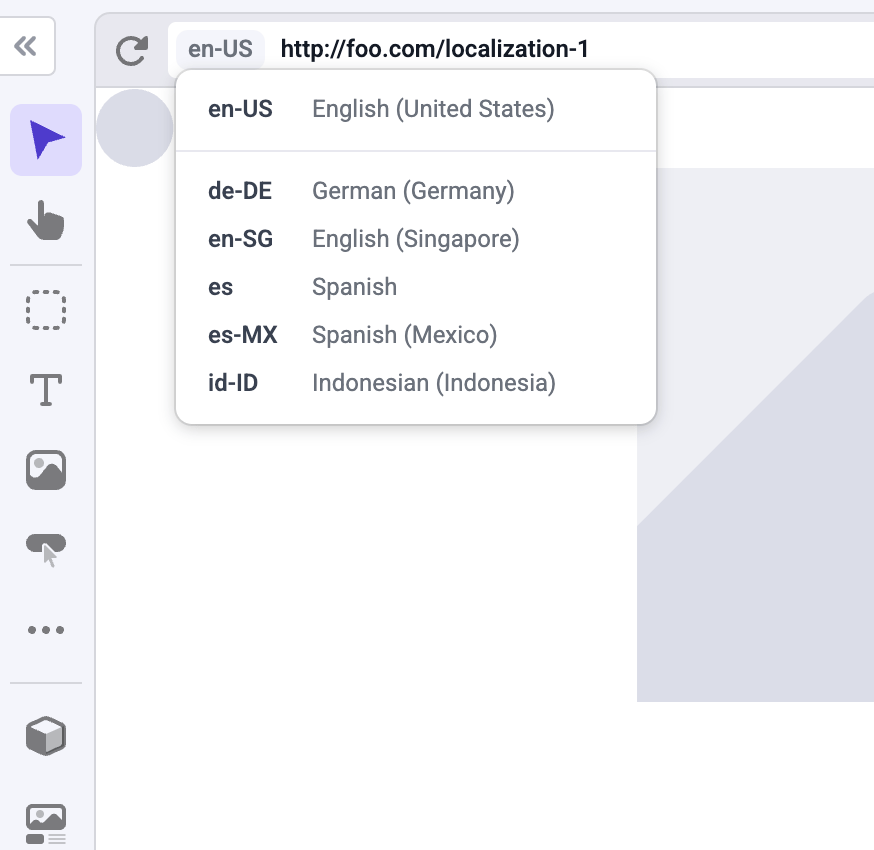
You can customize the path for each page in each locale. For example, if you have a company page at `example.com/company`, you can create the Spanish version of the page at `example.com/es/compania` or `example.es/compania`.
## Domain-based localization
If you don't provide a domain for a locale, the localized pages will be located on the same domain as the default locale,
but nested on the locale's path. For example, `es` pages will be located on `example.com/es/page`.
To use domain-based localization, first, add the domain to the locale on your site settings:
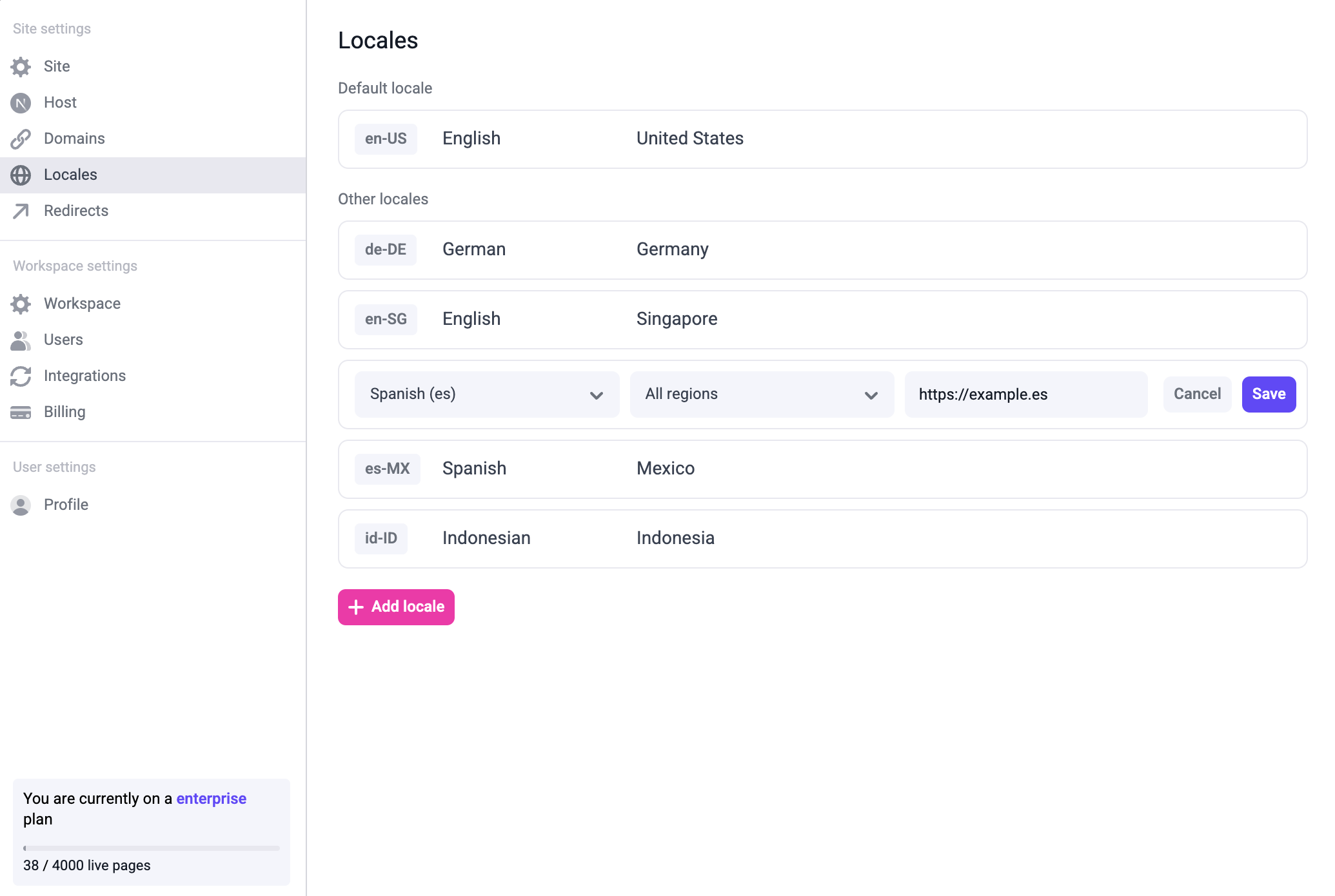
Then, add the domain to your `next.config.mjs`:
```js next.config.mjs
import createWithMakeswift from "@makeswift/runtime/next/plugin"
const withMakeswift = createWithMakeswift()
const nextConfig = {
i18n: {
defaultLocale: "en-US",
locales: ["en-US", "de-DE", "en-SG", "es", "es-MX", "id-ID"],
domains: [
{
domain: "example.es",
defaultLocale: "es",
},
],
},
}
export default withMakeswift(nextConfig)
```
```js next.config.js
const createWithMakeswift = require("@makeswift/runtime/next/plugin")
const withMakeswift = createWithMakeswift()
const nextConfig = {
i18n: {
defaultLocale: "en-US",
locales: ["en-US", "de-DE", "en-SG", "es", "es-MX", "id-ID"],
domains: [
{
domain: "example.es",
defaultLocale: "es",
},
],
},
}
export default withMakeswift(nextConfig)
```
Once you've done that, the Spanish localized pages will be located on `example.es/page`.
## Localized resources
When making changes on a different locale you can override any property, including the page's pathname, metadata, and SEO tags.
You can also localize a global component. To do this, edit a global component within a localized page, make changes,
and then save the global component. That global component will be saved for that locale.